Guide to Solutions for Uploading Content to Samsung Monitors: Options and Costs

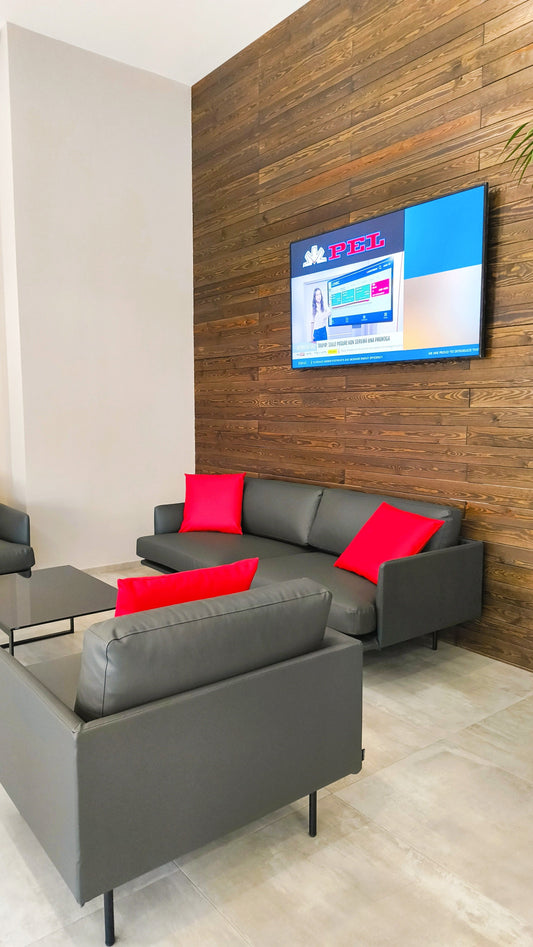
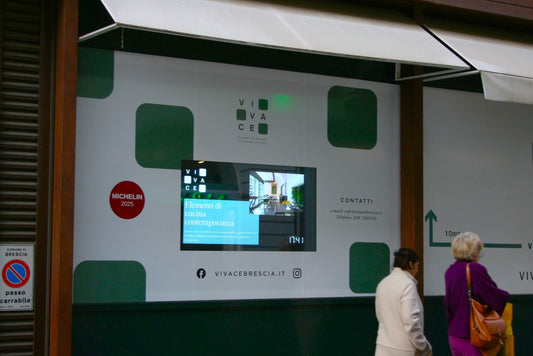
In the digital age, Samsung monitors offer versatile solutions for DIGITAL SIGNAGE, an area in constant expansion for modern businesses. This guide examines in detail the various software and hardware options available, including Samsung's proprietary solutions and third-party devices, with an in-depth analysis of costs.
1. Samsung Proprietary Software Solutions
MagicINFO: MagicINFO is a robust solution from Samsung for digital content management that offers advanced control and detailed content scheduling.
- Functionality: Includes tools for content creation, playlist scheduling, real-time viewer analytics, and detailed control of every connected display. It supports various multimedia formats and allows content management based on screen groups or individual displays.
- Versions: Available in different versions, from Lite to Premium, to suit various business needs. The Lite version is often free but limited, while more advanced versions, such as Premium, offer complete management and analytical capabilities.
- Cost: A Premium license has a one-time cost of approximately €900, but this varies based on volume and specific requirements.
Samsung VXT: Samsung VXT is a platform evolved from MagicINFO that offers cloud-native content management with advanced features.
- Description: VXT uses cloud technologies for easy content management across multiple devices and locations. It allows users to create, distribute, and manage multimedia content on a large scale.
-
Costs:
- S Series: $240 per year per screen, ideal for basic operations.
- P Series: $480 per year per screen, includes all S Series features plus advanced functions like multi-screen management and synchronized scheduling.
- X Series: For a customized offer that includes direct support and additional features, you must contact Samsung directly.

2. Other Compatible Management Software
- Signagelive: Natively supports Samsung Tizen displays, with a cost of approximately €230 per year per screen.
- OnSign TV: A cloud platform that manages content and monitors Samsung Tizen displays, with costs starting from $215 per year per screen.
- Navori QL: Offers advanced management for display networks of any size, with costs starting from $220 per year per screen.
- Look Digital Signage: Easy to use and can be installed directly on Samsung displays, with a cost starting from $162 per year per screen.

3. Hardware Solutions for Digital Signage
Intel Compute Stick and Intel NUC: These devices transform any display into a digital signage system. As mini PCs, they support a wide range of digital signage software.
- Intel Compute Stick: Starts from approximately $150.
- Intel NUC: Varies between $200 and $1000.
- Compatible Software: Xibo, NoviSign, and Yodeck are examples of software that can be installed on these devices to manage digital content.
BrightSign: Devices dedicated to digital signage known for their reliability.
- Cost: Varies from $250 to $800.
- Google Chromebit: Approximately $85.
- Google Chromebox: Approximately $200.
- Digital Signage Apps: Include solutions such as Appspace and Arreya.
Raspberry Pi: A budget-friendly option for digital signage, usable with various software.
- Cost: Approximately $50.
- Compatible Software: Screenly OSE, Pi Signage, and Info-Beamer.
Mini PC with Windows: Support digital signage software like NoviSign.
- Cost: Starts from $150.
- Compatible Software: NoviSign, Intuiface.

4. Using the Monitor Without External Services
Direct Content Loading: Samsung monitors can play media directly from USB ports. This feature is ideal for situations where you do not want to depend on network connections or additional software.
- Procedure: Copy video or image files to a USB drive, insert it into the monitor, and use the on-screen menu to navigate and play the content.
- Supported Formats: Check your monitor's manual to find out which file formats are supported, which typically include JPEG for images and MP4 for videos.
Presentations: You can use software like PowerPoint or Google Slides to create presentations, save them to a USB drive, and then play them directly on the monitor.
- Loop Mode: Many presentation applications allow you to save the presentation so that it can run continuously, a useful feature for storefronts or informational signage.
- Browser Access: If the monitor is connected to the internet, you can also access presentations hosted online and display them in full-screen mode.
Full-Screen Website: Using the built-in browser to display websites in full-screen mode is a great way to showcase dynamic content such as real-time information, news, weather, or business dashboards.
- Configuration: Configure the monitor's browser to automatically launch a specific webpage upon startup. Ensure the site is responsive and optimized for full-screen viewing.
Touch Screen Functionality: If the monitor is equipped with touch capabilities, you can leverage this technology to increase interactivity.
- Touch User Interface: Touch interfaces are effective in public environments for interactive maps, product information, or feedback forms.
- Compatible Applications: Check which touch applications are compatible with the monitor's operating system and use the touch functionality to improve engagement.

Conclusion: Effective content management on Samsung monitors can transform the way a company communicates with its customers, improving engagement and operational efficiency. Choosing the right combination of hardware and software is crucial for the success of your digital signage strategy.